
In plain English
- Artifact: a page Claude builds for you beside the chat, such as a document, a diagram or a small interactive tool you can click through.
- Canvas: Gemini's version, a separate window where it builds a document, a page or an app you can edit and export. ChatGPT had one too, and has retired it from its current models.
- Custom instructions: text you save once in your AI's settings that it reads at the start of every chat. Claude calls them Instructions.
I was working through a technical question for a client recently, and the AI's answer was technical too. I needed to explain it to someone who isn't, so every part of it had to make sense. So I told it: plain explainer, and if you need a flavour for it, look at my previous writing and how I like things explained. Then I got it to walk me through it, and I questioned every decision that came back.
You're still responsible for everything the AI produces for you, and Claude isn't to be trusted implicitly, and neither are any of the others. Use some of the time the AI saves you to make sure you understand what it did.
An explanation can also come as a page instead of a block of text. The AI builds it for you to click through, with questions to answer. Claude calls this an artifact (opens in a new tab), Gemini builds it in Canvas, and ChatGPT builds it inside the chat. I don't use them enough, but I need to. They allow for some interactivity, and they present information more visually.
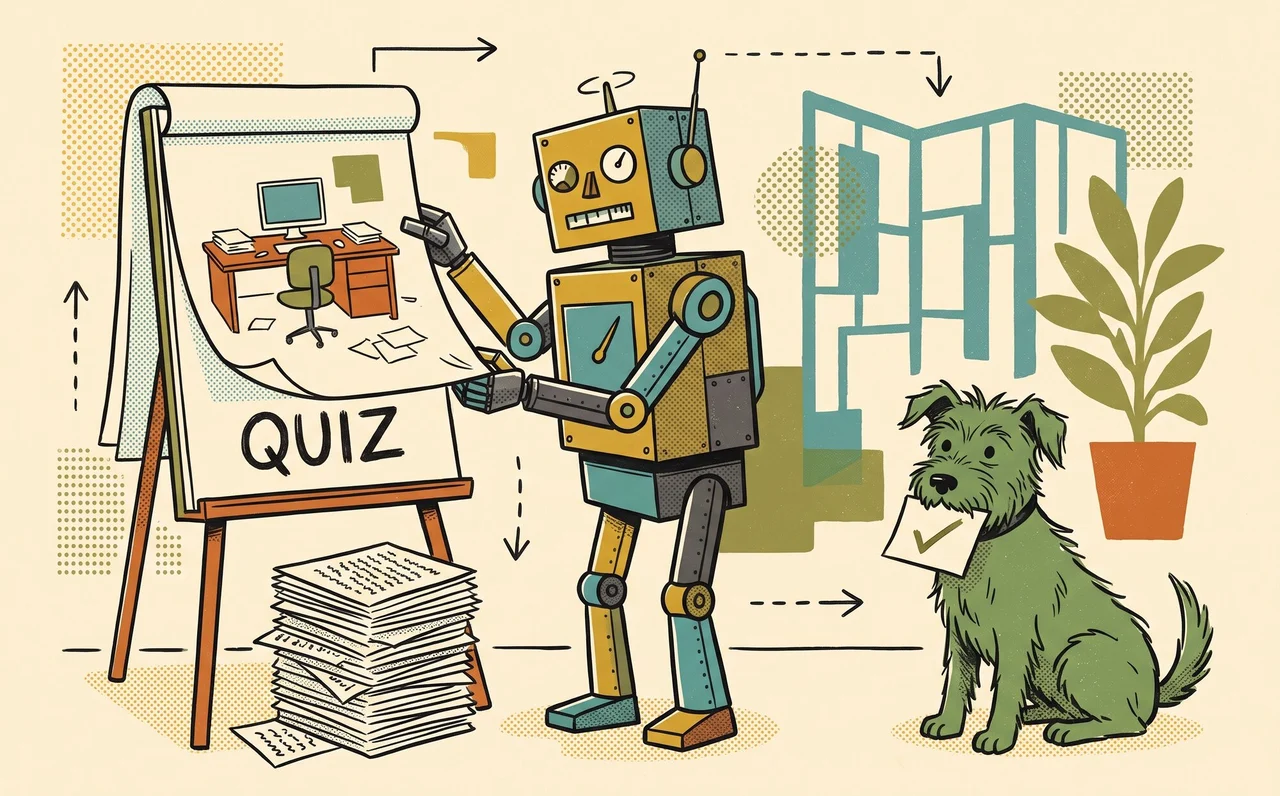
To see how that works on something new, I typed the same request into a new chat in all three, about something I didn't understand: the red crab migration on Christmas Island.
I don't understand the migration of the red crabs on Christmas Island. Make me an interactive page I can click through one step at a time, with a simple picture for each step and an everyday example, then a three-question quiz at the end so I can check I've understood.
All three built one. Claude made an artifact with seven steps and a picture for each. Its quiz tells you which step to go back to if you get an answer wrong. It searched the web first and listed its sources under the page.
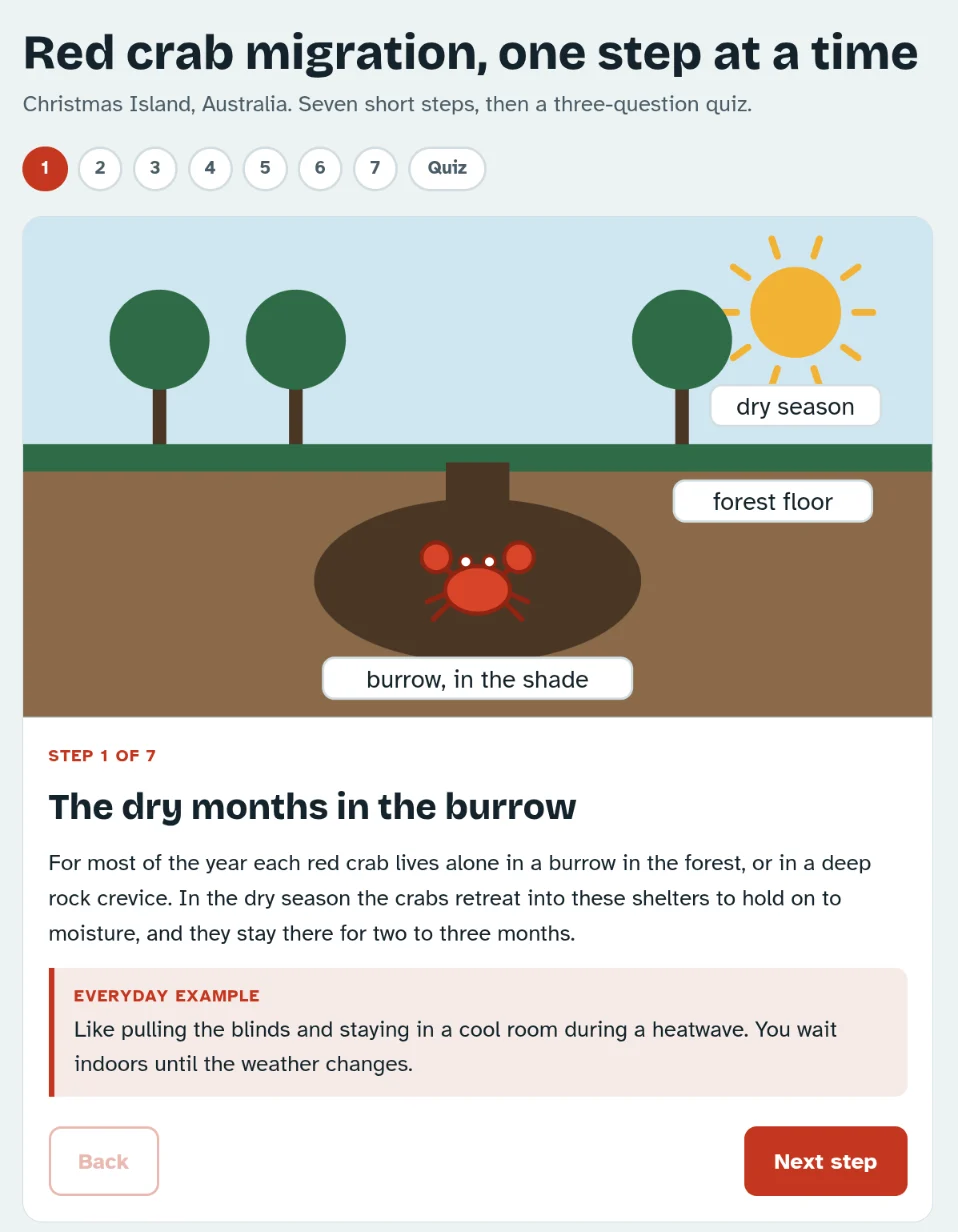
Click through Claude's crab page ↗ (opens in a new tab)
ChatGPT built an interactive lesson inside the chat, with six steps, a progress bar and a quiz. It used to have a separate window for this, called Canvas. OpenAI retired Canvas from its current models in May (opens in a new tab). The chat now builds diagrams and small tools itself (opens in a new tab) when they suit the question. ChatGPT's Plus, Pro, Business and Enterprise plans also have Sites (opens in a new tab), which builds an interactive website you can publish and share with other people.
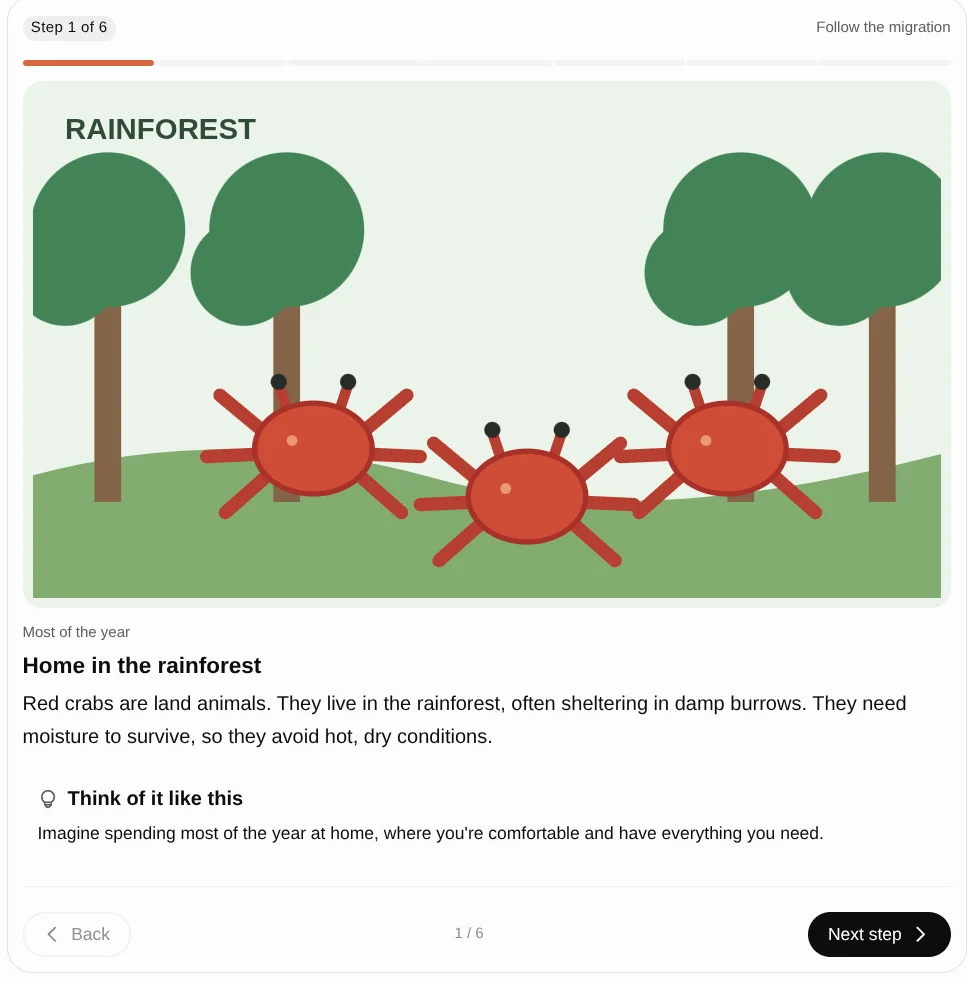
Click through ChatGPT's crab lesson ↗ (opens in a new tab)
Gemini built its version in Canvas (opens in a new tab), its own window for pages like this. It has a tab for each stage of the migration and a quiz at the end.
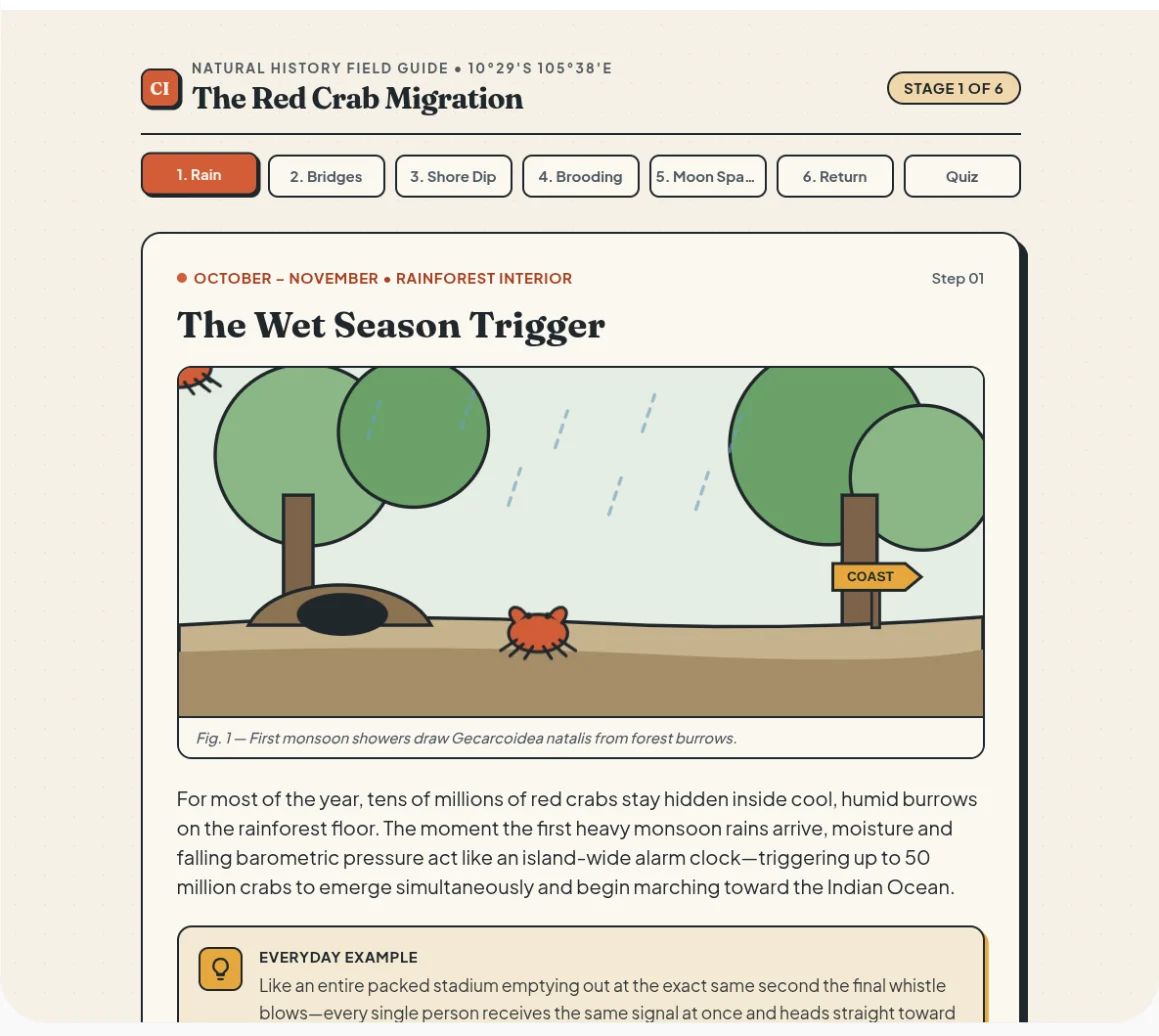
Click through Gemini's crab guide ↗ (opens in a new tab)
Get a quiz question wrong in each, and see which one tells you where to look again.
To try it on your own work, paste in the email, report or AI answer you're stuck on, and ask for the same kind of page. Further down, under Check it works, there's one I got for a question about tokens on AI pricing pages.
Everyone has different ways of learning, and a page like this lets you stop, take a step back and say you don't get it yet. Richard Mayer's research found that people learn better from words with pictures, in steps they move through at their own pace (opens in a new tab). A 2008 review of the evidence (opens in a new tab) found no good support for matching teaching to someone's preferred learning style.
The AI writes the quiz as well as the page, so a good score straight away only shows you followed what it said, and what it said can still be wrong. Check anything you're going to act on.
Save how you like things explained
To avoid asking every time, tell the AI once how you like things explained. Save it in your settings so it applies to every chat:
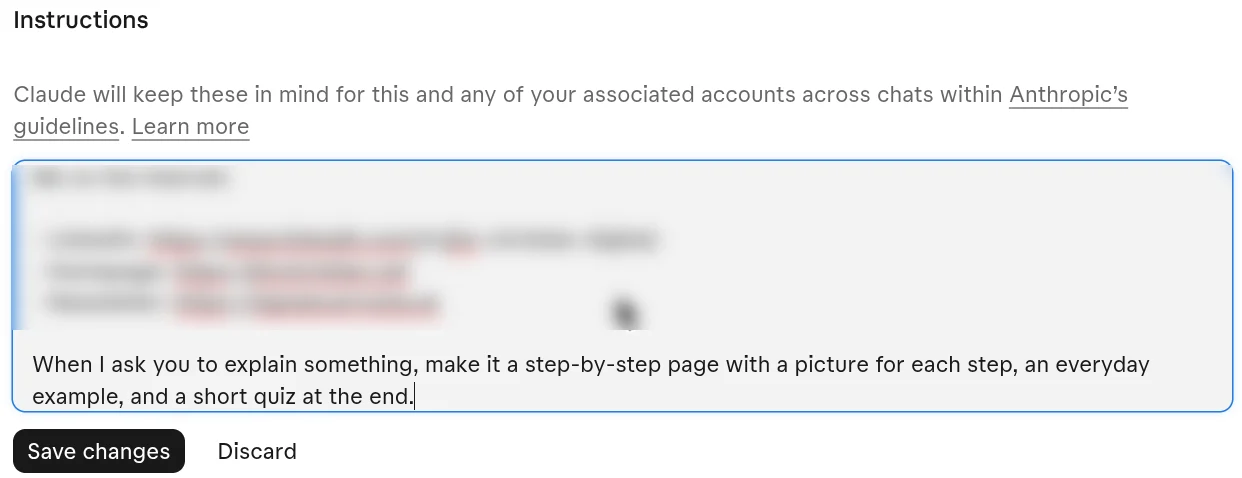
When I ask you to explain something, make it a step-by-step page with a picture for each step, an everyday example, and a short quiz at the end. If I get one wrong, tell me why and which step to go back to.
If you have an explanation you once found easy to follow, add it underneath, so the AI knows what good looks like:
Here is an explanation I found easy to follow: [paste it here]
In Claude: open Settings, then Your Claude, and paste the lines into the Instructions box.
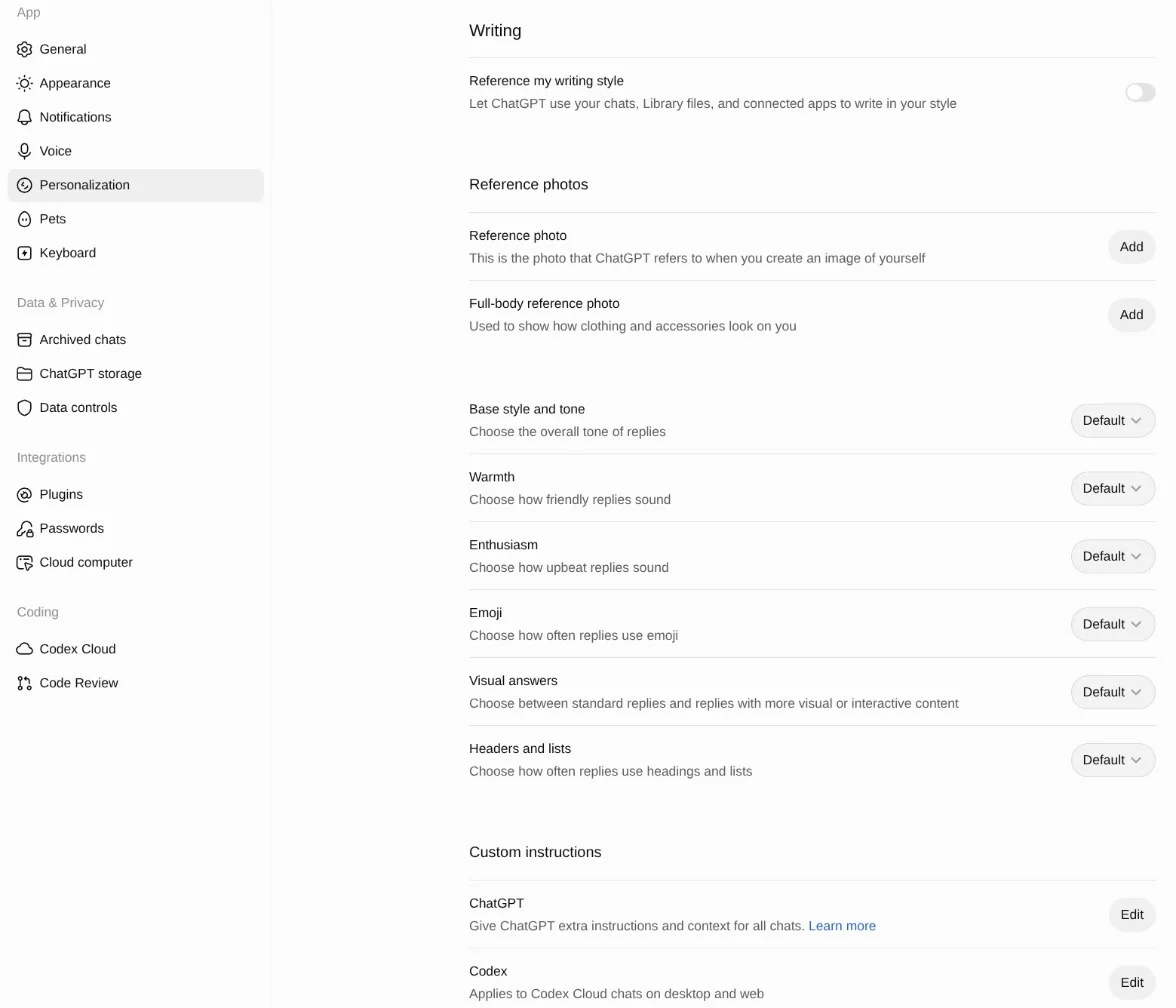
In ChatGPT: open Settings, then Personalization, and paste the lines into Custom instructions.
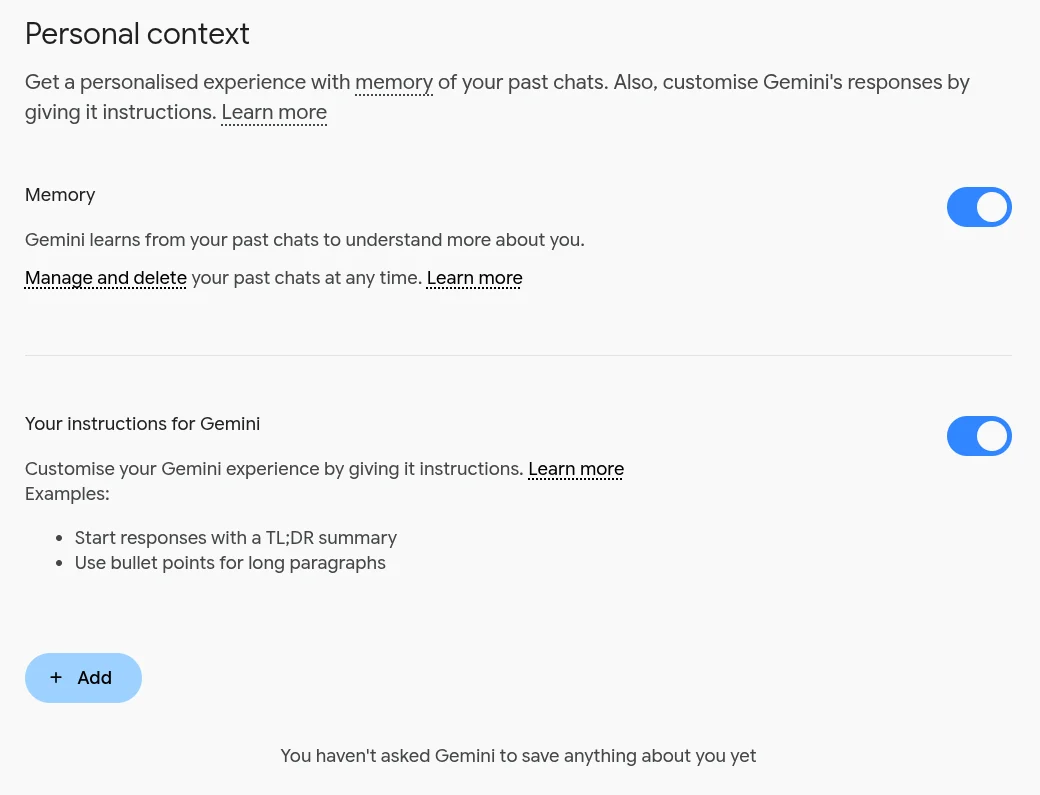
In Gemini: open Settings, then Personal context, and under Your instructions for Gemini click Add and paste the lines in. This only works on a personal Google account, not a work or school one (opens in a new tab).
Check it works
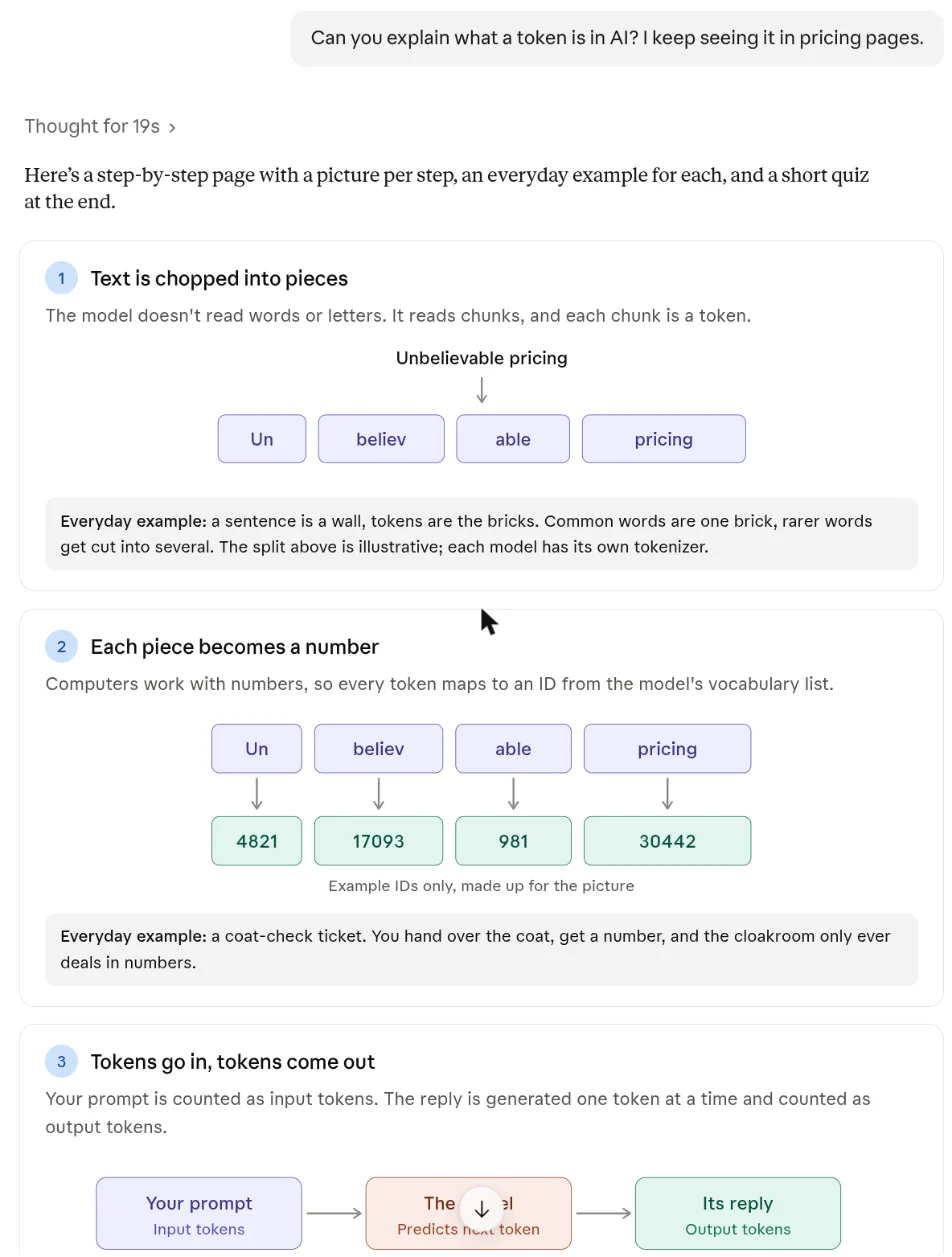
Start a new chat and ask a plain question, such as "What is a token in AI? I keep seeing it on pricing pages." With the first line saved, Claude replied "Here's a step-by-step page with a picture per step, an everyday example for each, and a short quiz at the end". It built the page without being asked again.
Change the lines to suit you: if food comparisons work for you, say so, and if you'd rather have diagrams, or quiz questions you answer in your own words, say that. You can build your own lines with the tool below. Members can get three worked versions to start from in the Members Library (opens in a new tab).
InteractiveHow I like things explained
Tick what helps you follow an explanation. The instruction below changes as you go, ready to save in your AI’s settings.
Your instruction
When I ask you to explain something, make it a page I can click through one step at a time, add a simple picture for each step, use an everyday example and end with a short quiz so I can check I’ve understood, and if I get one wrong, tell me why and which step to go back to.
Where to paste it
- In Claude: Open Settings, then Your Claude, and paste it into the Instructions box.
- In ChatGPT: Open Settings, then Personalization, and paste it into Custom instructions.
- In Gemini: Open Settings, then Personal context, and under Your instructions for Gemini click Add and paste it in. This works only on a personal Google account, because work and school accounts don’t have it.
To check it works, start a new chat and ask a plain question, such as “What is a token in AI?”
Pages and quizzes help at the end of a day too. Ask the AI for an explainer of everything you covered, and which topics you might not have understood yet. Then ask it for a few quiz questions on those. Leave a gap before you quiz yourself, because having to work harder to remember something helps you remember it later. Gemini and Google's NotebookLM are particularly good at flashcards and quizzes.