beginner 45 minutes
Vibe coding with Git: undo mistakes, keep your API keys safe
Vibe coding with Git: commit at good stopping points, undo a broken fix, keep API keys in .env and write a rules file, for Claude Code, Cursor, Codex or Replit.
You'll be able to
- set up a new project folder with Git, a
.gitignoreand a.envfile before your first commit; - ask your AI to commit at a good stopping point, and to undo a change that broke things;
- spot a secret that’s about to go into your history, and rotate it if it already has;
- write a short rules file so your assistant remembers how your project works.
- Who it’s for
- people building with Claude Code, Cursor, Codex, GitHub Copilot, Antigravity or Replit who haven’t worked as software developers. No Git experience needed.
- Time
- about 45 minutes to read it and set up one project with the exercise (an estimate). After that, keep it as a reference.
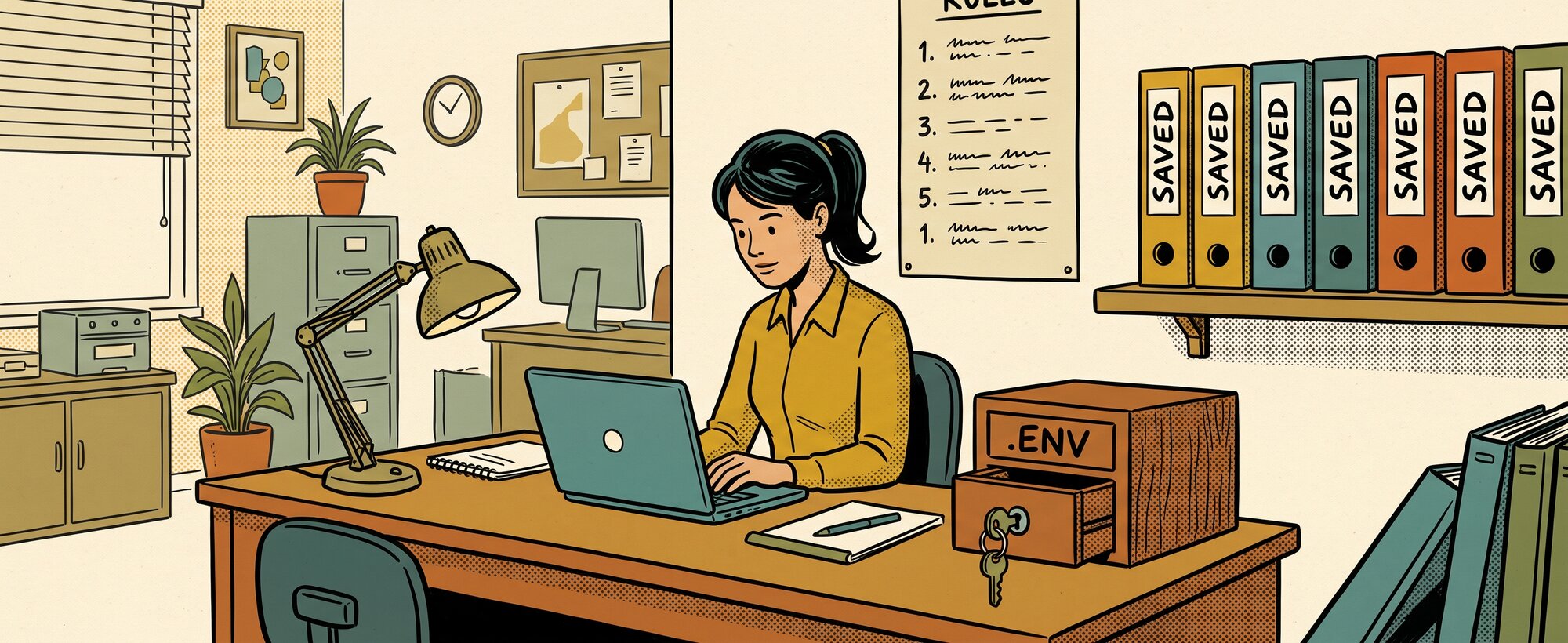
You ask your AI assistant for one small change to the login page, and it replies “Fixed!” When you run the app, it won’t start. You scroll back through two hours of conversation trying to remember what worked, and you realise there is no copy of the version that did. If your project has no history, you can’t go back.
You can build real things with an AI coding assistant without learning to code. A small number of habits will keep your work safe, your secrets off the internet, and your setup reproducible the next time you open a session with the AI. Which habits are they, and when do you ask your assistant for each one?
The four steps before any new AI-built project:
- Make a folder. One project, one folder. Don’t build inside your Desktop.
- Put it under version control on day one, before you’ve written anything worth saving.
git inittakes six seconds. - Add a
.gitignorebefore your first commit. The template further down covers the non-negotiables. - Put your API keys (secret codes that let a program use a service as you) in a
.envfile that’s listed in your.gitignore, never inline in your code.
The AI can run all of these commands for you. Ask for each step in plain words, such as “commit what we’ve got so far before the next change”, and Claude Code or Cursor will carry it out. What you need to know is when to ask.
Part 1 of 4 Learn
Git saves the versions, GitHub keeps a copy online
Git is a program that lives on your computer. It keeps every version of a folder that you save (commit), so you can go back to any of them. Every command in this guide is a Git command.
GitHub is a website. It stores copies of your Git history in the cloud. It also adds tools for working with other people, such as issue lists and pull requests (a way to propose changes for someone else to review). Most of the open-source code in the world currently lives there. It’s owned by Microsoft, and it’s free for most solo use. Alternatives exist, such as GitLab, Codeberg and Bitbucket, and for what this guide covers they’re interchangeable.
Use version control, because the AI can break working code
When you build alone with an AI, nobody else keeps a copy of the code that worked. One confident-sounding “fix” can break it, and the AI won’t always notice.
Building fast with AI has a second cost, which Margaret-Anne Storey describes as cognitive debt (opens in a new tab): the humans involved may have lost track of what they built. They may not understand what the program is supposed to do, how their intentions were implemented, or how to change it. Simon Willison called her piece (opens in a new tab) the best explanation of the term he’d seen so far. He wrote that after prompting whole features into existence without reviewing them, he’d found himself “getting lost in my own projects”. The code runs, you don’t fully understand why, and when it stops running you can’t diagnose it from memory. You need the old version back to compare against.
Version control is how you get the old version back. It’s also how you answer “what did I change between the working one and this broken one?” without retracing the last two hours of conversation with the AI.
You can use Git without GitHub, and “I don’t want to put this on GitHub” is a fine preference. Git on its own lives on your laptop, though. If the laptop goes, the history goes with it, so keep an off-site copy somewhere. Version control itself is the part you can’t skip: without it, one bad fix can lose the project.
I’ve been relying on backups my whole working life: I’ve pulled from them when I needed to, and lost nothing important because of them. I know they save real work when something breaks. When you get the chance to bake that safety net into the thing you’re building from day one, there’s no good reason not to.
What to do:
- If you’re building anything you’d be upset about losing, put it under version control today.
- Use Git locally at minimum; use GitHub (or GitLab, Codeberg and so on) if you want a backup that’s still there if your laptop breaks.
- Ask your AI: “Put this folder under version control and push it to a private GitHub repo called [name].” A repo, short for repository, is a project folder that Git tracks, with its history.
Commit at good stopping points
Git has dozens of commands. These four cover most solo use, and the rest are for problems you don’t have yet:
git initturns a folder into a Git project. Done once, on day one.git add .stages everything you’ve changed: it picks those changes for the next commit.git commit -m "what changed"saves a snapshot with a message describing what’s different.git pushsends your snapshots to GitHub, once the project is connected to a repo there (ask the AI to set that up).
The coding assistants this guide covers can run these commands in your project folder. Ask in one sentence: “Commit what we’ve got and describe the change.”
The three times you’ll be glad you set this up:
- The AI’s “small fix” breaks everything. Start by finding the problem, then decide whether to keep the change:
- Ask “Show me what changed since the last commit” to see the difference.
- If you can’t fix it, ask “Undo everything since my last commit, including any new files” and you’re back at the last working snapshot. That throws the changes away for good, so only ask when you don’t want them.
- If you’d already committed the bad change, ask “Revert my last commit”. Git adds a new commit that reverses the old one (
git revert), so nothing is lost.
- You want to try a risky idea without committing to it. Make a commit, try the idea, keep it if it works, undo it if it doesn’t. There’s no doubt about what the “before” state was.
- You need to ask someone for help. You can send them a link, or a diff, which lists exactly what changed between two versions, line by line. They don’t have to guess what you did.
When I’m building with Claude Code, I commit at the end of a feature, at the end of a session, or whenever the work’s at a natural stopping point I wouldn’t want to lose. If you’re starting out, commit at the end of each feature: it’s the cleaner rule, and most vibe-coding sessions cover one feature at a time anyway.
What to do:
- After any meaningful chunk of work (a new feature, a working fix, the end of a session): commit.
- Write the commit message in plain language. “Added dark mode toggle” is better than “changes.”
- If you’re using GitHub, push once or twice a day. That’s your off-site backup. Your
.envfile isn’t in that backup, because Git ignores it, so keep your keys in a password manager as well.
Keep secrets out of your code and your Git history
A commit records everything in the folder, including keys you shouldn’t share. API keys, access tokens, database passwords and OAuth credentials are all secrets, and anyone who has your key can use the service as you.
The rule: secrets never go into code, and they never go into Git history.
Both parts matter. A secret in a code file that gets committed to GitHub is leaked. A secret you paste into a prompt has already left your computer. If the AI then writes it into a file you commit, it’s in your history too.
Why a committed key stays a risk:
- Deleting a secret doesn’t remove it from history. Delete it from a file, commit the deletion, push, and the secret is still in the history, where anyone with access to the repo can find it. Rewriting history to remove it is possible but painful, and by the time you’ve done it, assume someone already has the secret.
- Public repos are scanned automatically. Bots watch new commits to public GitHub repos for API keys, so a published key can be found and used quickly.
- Even private repos leak. Someone gets added to the repo, shares their screen, makes a backup. Each of these gives another person a way to see the key.
The fix: environment variables. A file called .env at the root of your project, its top-level folder, holds lines like:
OPENAI_API_KEY=sk-abc123...
BASECAMP_TOKEN=xyz789...
DATABASE_URL=postgres://...
Your code loads .env when it runs, and the AI sets that up when it moves your secrets there. Because .env is listed in your .gitignore (see the next section), it never gets committed. Every machine you work on gets its own .env file, filled in locally, never shared.
What to do:
- Never paste an API key into code, into a prompt or into a commit message. If you already have, rotate the key at the provider’s dashboard straight away, then put the new one in
.env. - Ask your AI: “Move every secret in this project into a .env file and update the code to read from it. Add .env to .gitignore.” It’ll make the changes.
Add a .gitignore before your first commit
The file that keeps .env out of your history is the .gitignore. It tells Git “don’t track these”, so the files listed in it stay out of your commits. You want three kinds of thing in there: secrets, machine-generated files, and clutter from your editor and operating system.
Copy this into a file called .gitignore at the root of any new project:
# Secrets (always)
.env
.env.local
.env.*.local
*.pem
*.key

# Dependencies (keep the ones for the language you use)
node_modules/
venv/
__pycache__/
.pnp.*

# Build and generated output
dist/
build/
out/
output/
*.egg-info/

# Editor and OS clutter
.DS_Store
Thumbs.db
.vscode/
.idea/

# Logs
*.log
npm-debug.log*
yarn-debug.log*
Keep these in history:
README.md, your notes to your future self on what this project is- your rules file, such as
CLAUDE.mdorAGENTS.md(see the rules-file section below) package.jsonorpyproject.toml, the list of what your project depends on
These should all be committed. They’re how anyone, including you in six months, understands what the project is.
Try sorting a small project’s files into commit or ignore, and copy the template when you’re done.
Made-up example for illustration. The project and its files are invented.
Safe to commit?
You’re about to make the first commit in a new project, and git status lists these ten files and folders. Choose which go into your history and which Git should ignore.
-
Ignore it. It holds your secrets, and anyone who has your key can use the service as you. The template’s
.envline catches it. -
Commit it. It’s the project itself. Keep keys out of it, in .env, so it’s safe to commit.
-
Ignore it. It’s a dependency folder. If you wait to add a .gitignore, it’s easy to commit it by mistake. The template’s
node_modules/line catches it. -
Commit it. Your rules file belongs in history, so every machine you copy the project to gets it too.
-
Ignore it. A key file is a secret, and a secret in your Git history stays there even after you delete it. The template’s
*.pemline catches it. -
Ignore it. It’s generated when the code runs, so there’s no need to keep it in history. The template’s
output/line catches it. -
Commit it. It’s your notes to your future self on what the project is and how to run it.
-
Commit it. It’s the list of what your project depends on, which anyone needs to run it.
-
Ignore it. It’s operating system clutter with nothing to do with your project. The template’s
.DS_Storeline catches it. -
Commit it. In the guide’s exercise, git status lists .gitignore and not .env, ready for the first commit.
Nothing sorted yet.
Your .gitignore
This is the guide’s template. Save it as .gitignore at the root of the project before your first commit. As you sort, the line that catches each file you ignore is marked.
# Secrets (always)
.env
.env.local
.env.*.local
*.pem
*.key

# Dependencies (keep the ones for the language you use)
node_modules/
venv/
__pycache__/
.pnp.*

# Build and generated output
dist/
build/
out/
output/
*.egg-info/

# Editor and OS clutter
.DS_Store
Thumbs.db
.vscode/
.idea/

# Logs
*.log
npm-debug.log*
yarn-debug.log*
This page sends nothing anywhere. Your choices stay in your browser.
What to do:
- Create
.gitignorebefore your first commit. If you wait, it’s easy to commitnode_modules/or an.envfile by mistake. - To check whether a file is ignored:
git check-ignore -v filename. - Ask your AI: “Add a standard .gitignore for a [Python / Node / whatever] project, plus entries for .env and editor files.”
Warning
Listing a file in .gitignore doesn’t stop Git tracking a file it already tracks. If .env or another secret was committed before you added it, rotate the secret at the provider first, then ask the AI to stop tracking the file. Removing it from Git history is a separate, harder job, and until you’ve rotated it, the secret is compromised.
Keep each project in its own folder
Keep one project in one folder, and keep nothing important on your Desktop.
It sounds obvious, and most vibe-coded projects I’ve seen break it. People have scripts in ~/Downloads, data files on the Desktop, and the main code in a folder they can’t find a week later.
Pick a top-level folder for all your code projects; ~/Dev/ works. (~ is short for your home folder, so ~/Dev/ is a folder called Dev inside it.) Inside it, give each project a structure like this, adapted to what you’re building:
~/Dev/my-research-assistant/
├── README.md           # what this is, how to run it
├── .env                # secrets (in .gitignore)
├── .gitignore          # what NOT to track
├── CLAUDE.md           # rules for the AI
├── src/                # the code
├── data/               # input data files
├── output/             # generated output (in .gitignore)
└── scripts/            # one-off utilities
Not every project needs every folder. The point is that everything for one project sits together, and each folder’s name tells you what’s inside without opening it.
Every project folder has a README.md at the root, and it answers three questions:
- What does this project do?
- How do I run it?
- What do I need to know before changing anything?
Even a three-sentence README is worth having. You are writing it for yourself six months from now.
What to do:
- Stop saving project files to your Desktop. Today.
- Make
~/Dev/if you haven’t already. Move existing projects into it one at a time. - Ask your AI: “Make a README for this project covering what it does, how to run it, and any gotchas.” It’s good at this because it already knows the code.
Write a rules file so the AI remembers
You shouldn’t have to re-explain the same things to your AI every time you open a session. A rules file at the root of your project tells the AI how to behave in this project, every time. It covers your conventions, what the project depends on, what to prefer and what to avoid. Each assistant reads it automatically when it starts working in the folder.
Which file each assistant reads
Git works the same whichever assistant you use: the commands, the .gitignore and the .env file don’t change. Assistants differ in two ways: whether they can run commands in your project folder, and what their rules file is called.
Claude Code reads CLAUDE.md and Replit Agent reads replit.md.
If you switch between tools on the same project, AGENTS.md is the one file all of them except Replit Agent read. Claude Code reads it when the project has no CLAUDE.md, in recent versions. If you also want a CLAUDE.md, put @AGENTS.md at the top of it, and Claude Code reads both.
For the technically curious: each assistant's rules file, versions and Gemini CLI
| Assistant | Rules file it reads | Source |
|---|---|---|
| Claude Code | CLAUDE.md, or AGENTS.md when the project has no CLAUDE.md | Anthropic docs (opens in a new tab) |
| Cursor | AGENTS.md, or .mdc files in .cursor/rules/ | Cursor docs (opens in a new tab) |
| Codex | AGENTS.md | OpenAI docs (opens in a new tab) |
| GitHub Copilot | .github/copilot-instructions.md, and AGENTS.md | GitHub docs (opens in a new tab) |
| Antigravity CLI | AGENTS.md or GEMINI.md | Tested each on its own, version 1.4.7 |
| Replit Agent | replit.md in the project's root folder | Replit docs (opens in a new tab) |
Checked 26 October 2026, and the vendor pages re-read on 5 November 2026 (the Antigravity row comes from my own test).
Claude Code reads AGENTS.md in place of a missing CLAUDE.md in version 2.1.277 or later.
Google stopped serving Gemini CLI (opens in a new tab) for personal accounts (free, Google AI Pro and Ultra) on 18 June 2026 and moved them to Antigravity CLI.
Chat apps such as ChatGPT, Claude or Gemini in the browser can’t run commands on your computer. Use them to explain what a Git command does, then run it yourself or in a coding assistant.
What to put in a rules file
- What this project is. One paragraph. “This is a personal research assistant that reads RSS feeds and summarises them into a daily email.”
- The language, framework and stack (the tools the project is built with). “Node 20, TypeScript, Cloudflare Workers.”
- Conventions you want respected. “Always ask before deleting files or running destructive commands.”
- Secrets rules. “Never paste API keys inline. Read them from .env, and never print a key in the chat.”
- Testing rules, if any. “Run
npm testbefore suggesting a commit.”
Add a line each time you notice you’ve told the AI the same thing twice.
One rule has earned its keep in mine: don’t claim work is done until you’ve checked. A rule like “before telling me a fix worked, run the thing and show me the output” catches the most common AI-assisted failure, the confident “fixed!” that nobody checked. It’s one line in the file.
What to do:
- If your project has more than two sessions of history, it needs a rules file. Start simple: five bullets is fine.
- Ask your AI for the first draft: “Read the code in this folder and draft a rules file that covers what this project is, the conventions you’ve been using, and anything worth remembering across sessions.”
- Commit it. Every machine you copy the project to then gets the rules file too.
Leave branches and automation for later
Traditional Git tutorials front-load the hardest parts: branches, merges, rebases, pull requests, CI/CD. You don’t need any of it yet. Most of it exists for teams, and you’re working alone.
A branch is a separate line of work in the same project. You can do everything in one branch, called main, until you need to try two things at once without them interfering. Merges and rebases bring the work from one branch into another. CI/CD is automatic testing and deployment, which is worth it for real products with real users and not for your weekend experiment.
The terminal is the text window where you type commands. If it puts you off, Git apps with buttons and menus (a GUI), such as GitHub Desktop, Tower and GitKraken, do the same job. If one of them gets you using version control at all, use it, because the goal is the habit. Tim Van Antwerp’s GitHub for Non-Programmers (opens in a new tab) is a Creative Commons-licensed guide for people who don’t want to use the command line at all.
When you outgrow these habits, read Simon Willison’s post on vibe engineering (opens in a new tab). It describes how experienced engineers use coding agents while staying accountable for the software they produce.
What to do:
- If something on this list comes up naturally (someone invites you to collaborate, or you need two parallel experiments), that’s when you learn it.
- Don’t feel bad about using a GUI.
Work through the login-page example
- Commit while the login page works: ask “Commit what we’ve got and describe the change.”
- Ask for the small change: the AI replies “Fixed!”, and the app won’t start.
- See what changed, and undo it if you can’t fix it, as in the first of the three times above. You’re back at the working login page.
- Try the change again in a smaller step, and commit once it works.
Part 2 of 4 Practise
Try it on your own work
- Make a project folder inside
~/Dev/for something small you want to build.Result one folder with the project’s name, and nothing for it on your Desktop. - Create a
.envfile in it with a made-up key such asTEST_KEY=not-a-real-key.Result a.envfile in the project folder containing that one line. - Ask your assistant to set up version control: “Put this folder under version control and add a standard .gitignore for [your language], plus .env and editor files. Show me git status before you commit anything.”
git statuslists the files Git sees as new or changed.Resultgit statuslists.gitignorebut not.env. - Ask for the first commit. Then run
git log, which lists your commits, newest first, andgit check-ignore -v .env.Resultgit logshows one commit, and the check prints the.gitignoreline that matches.env. - Write a rules file with five bullets, using the file name your assistant reads (see “Which file each assistant reads” above), and ask the AI to commit it.Result
git logshows a second commit that adds the rules file, and in a new session the assistant can tell you the project’s conventions when you ask. - Ask for a small change, then undo it: “Show me what changed since the last commit”, then “Undo everything since my last commit, including any new files.”Result the first shows the change; after the second,
git statusreports nothing to commit. - Make a change you want to keep and ask “Commit this with a plain-language message.”Result
git logshows three commits, the newest with a message that says what changed.
Part 3 of 4 Check
Check yourself
Your project's scripts are in Downloads, a data file is on your Desktop, and the main code is in a folder you can't find. What do you do before the next session with the AI?
Give the project one folder inside ~/Dev/ and move everything for it there, one project at a time. Then put that folder under version control.
You pasted an API key into app.py and committed it to a private GitHub repo. Is deleting the line and committing again enough?
No, because the key is still in the Git history. Rotate it at the provider’s dashboard first. Then put the new key in .env, make sure .env is in .gitignore, and change the code to read from it.
You're about to make the first commit in a new project and git status lists .env and node_modules/. What do you do?
Don’t commit yet. Add a .gitignore that lists .env and node_modules/, run git status again to check they’ve gone from the list, then commit.
You use Cursor at work and Claude Code at home on the same project, and you keep telling both to use the same test command. How do you stop repeating yourself?
Put the instruction in an AGENTS.md file and commit it with the project. Cursor reads it, and so does Claude Code when the project has no CLAUDE.md. If you already have a CLAUDE.md, add @AGENTS.md at the top of it so Claude Code reads the shared file too.
The login page finally works, and you're about to ask the AI to add a password reset. What do you do first?
Commit. Ask “Commit what we’ve got and describe the change”. The working login page is then a snapshot you can go back to if the password reset breaks it.
Part 4 of 4 Keep
Keep this
Commit at every good stopping point, and keep secrets in .env
- When the assistant says “fixed!” and the app won’t start, ask it to show what changed since the last commit, or to undo everything since the last commit.
- Start every project with the same four steps: folder,
git init,.gitignore,.env. Before any commit, checkgit statusdoesn’t list.envor other secrets. - Ask your assistant to commit at the end of each feature or session.
- If a secret ever reaches a commit, rotate it first.
- Add a line to your rules file whenever you catch yourself telling the AI the same thing twice.
In the Members Library (opens in a new tab), members can get the project starter kit. It holds a .gitignore, a .env file, the folder layout, a rules file and the prompts for a new project.
Read next
- Setting Up Your First CLAUDE.md File: a rules file in more depth, for Claude Code.
- Happy Birthday, Dear… how LLMs predict the next word: why an assistant can say “fixed!” with confidence and be wrong.